

Varuag OS
The operating system behind Varuag Labs.
One mobile app where we run our work: clients, projects, team and invoices, all in one place.
Clients
Follow the projects we build for them.
Team members
See the projects and tasks assigned to them.
Interns
Join live projects and track their work.
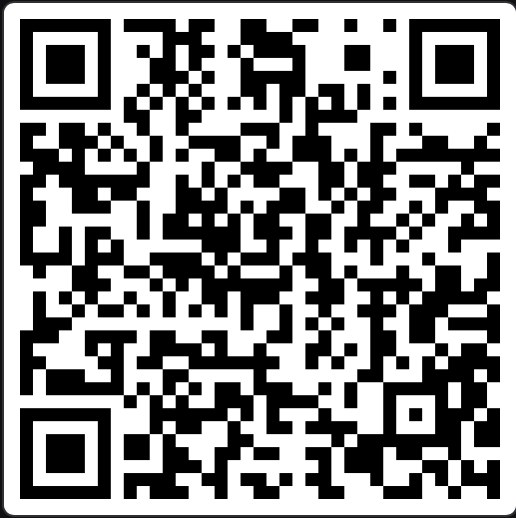
Working with us? Scan the QR code to download the app. Accounts are created by our team, so you’ll get your login once you join a project.
01 — How it works
From first login to final invoice.
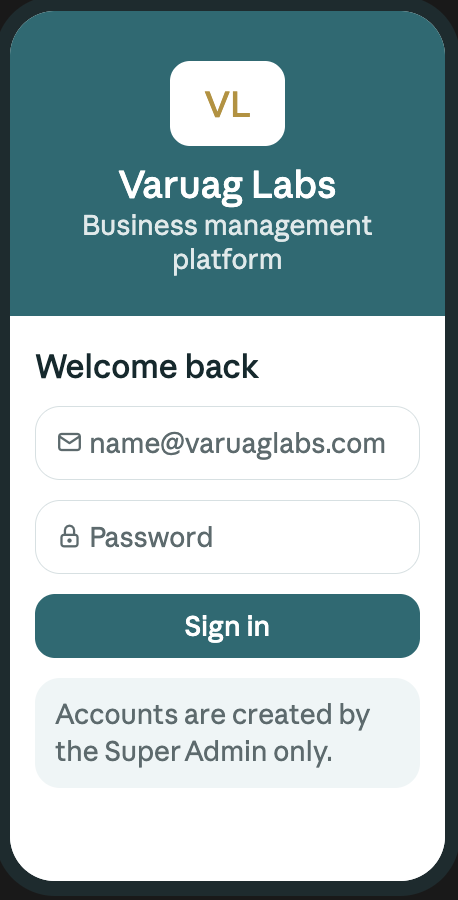
Step 1: Sign in securely
There's no public sign-up. Every account is created by the Varuag Labs Super Admin, so only people working on our projects can get in.
- Email and password login
- Accounts created by our team only
- Login stored securely on the device
See how it worksShow less
What’s on this screen
- Email address
- the work email Varuag Labs registered for you
- Password
- with a show/hide button
- Sign in button
- opens your workspace
- Forgot password note
- resets are handled by the Super Admin
- Access notice
- explains public registration is disabled
How it works
- Varuag Labs creates your account when you join a project.
- You receive your login email and password from our team.
- Download the app and open it.
- Enter your email and password, then tap Sign in.
- The app opens the workspace for your role, with your role badge at the top.
Example
A new intern joins a project on Monday. The Super Admin creates their account, shares the login, and the intern signs in from their phone the same day.
Who uses it
Why it helps
Only people invited by Varuag Labs can sign in, so project and business data stays private.
Step 2: See the business at a glance
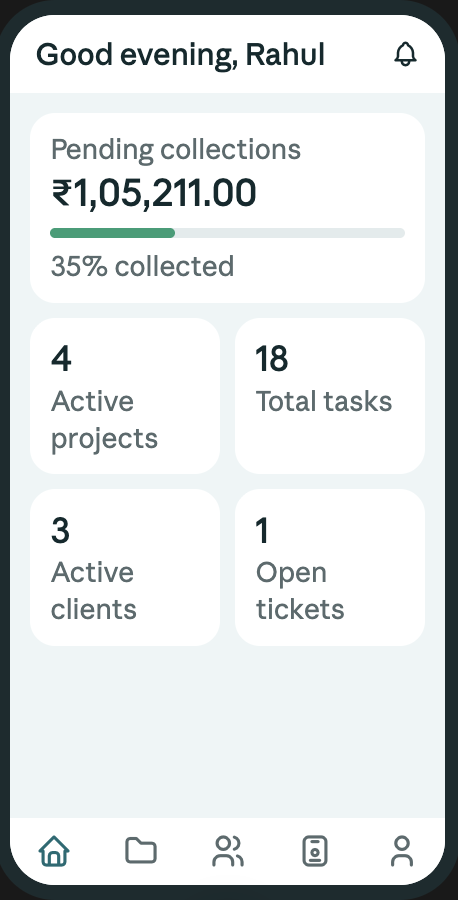
The home screen shows what matters today: pending collections, active projects, total tasks, active clients and open support tickets.
- Collected vs pending payments
- Project and task counts
- Open tickets at a glance
See how it worksShow less
What’s on this screen
- Greeting and date
- welcomes you by name with today's date
- Pending collections
- total amount still to be received
- Progress bar
- how much of the invoiced amount has been collected
- Collected, pending and overdue
- three quick payment numbers
- Business overview
- active projects, total tasks, active clients and open tickets
- Quick links
- View all, View directory and View desk
How it works
- Sign in and the dashboard opens first.
- Check pending collections to see money still to come in.
- Look at overdue invoices to spot late payments.
- Scan the overview cards for projects, tasks, clients and tickets.
- Tap a quick link to go straight to that section.
Example
Every morning, the founder opens the app and sees ₹1,05,211 pending, no overdue invoices and one active project, all before the first meeting.
Who uses it
Why it helps
The whole business is visible in seconds, without opening reports or spreadsheets.
Step 3: Keep every client organised
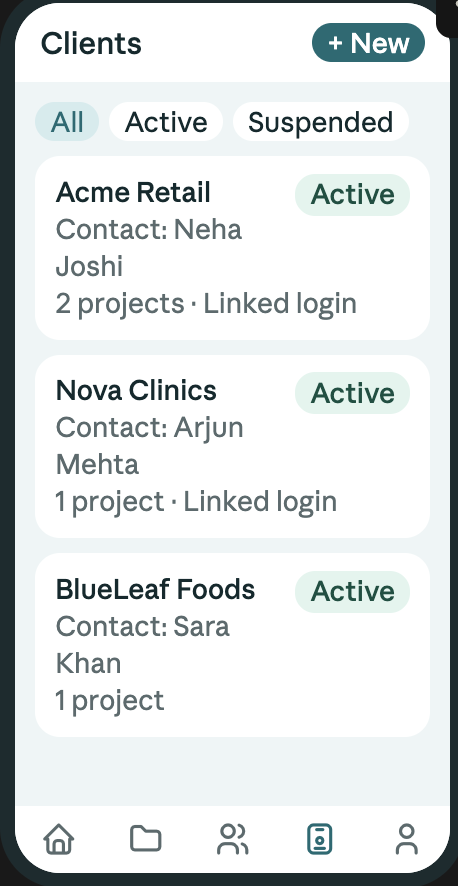
A searchable client directory with contact details, linked projects and each client's own login status.
- Search by company, contact or email
- Filter active, suspended or disabled
- Projects linked to each client
See how it worksShow less
What’s on this screen
- Client count
- how many clients are registered
- New client button
- add a client in a few taps
- Search
- find clients by company, contact or email
- Status filters
- All, Active, Suspended and Disabled
- Client card
- company, contact person, email and status
- Linked info
- number of projects and whether the client's login is active
- View and edit
- open or update any client
How it works
- Tap New client and enter the company name, contact person and email.
- Link the client to their project.
- Give the client their own login so they can use the app.
- Use search or filters to find any client later.
- Suspend or disable a client's access when a project ends.
Example
A new business signs with Varuag Labs. Their details are added once, linked to their mobile app project, and their contact person gets a login.
Who uses it
Why it helps
All client details and access live in one place instead of scattered chats and sheets.
Step 4: Plan and track projects
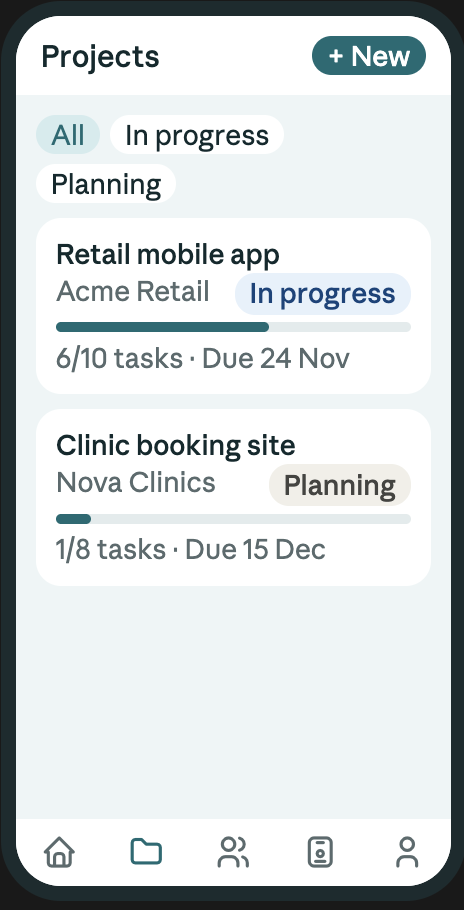
Every project has a client, status, priority and due date, with a progress bar that fills as tasks get done.
- Planning, in progress, on hold, completed
- Task progress per project
- Priority and deadlines
See how it worksShow less
What’s on this screen
- Search
- find any project by name
- Status filters
- In progress, Planning, Completed and On hold
- Project card
- project name, client and short description
- Task progress
- tasks done out of total, with a percentage bar
- Priority tag
- such as low, medium or high
- Due date
- when the project should be delivered
- Actions
- view, edit and delete
How it works
- Tap New and enter the project name, client and description.
- Set the priority and due date.
- Start in Planning, then move to In progress when work begins.
- As tasks get completed, the progress bar fills automatically.
- Mark the project Completed when it's delivered.
Example
A mobile app project starts in Planning with a 24 November deadline. As the team finishes tasks, the progress bar moves from 0% towards 100%.
Who uses it
Why it helps
Everyone can see what's on track and what needs attention, without asking for updates.
Step 5: Know who's working on what
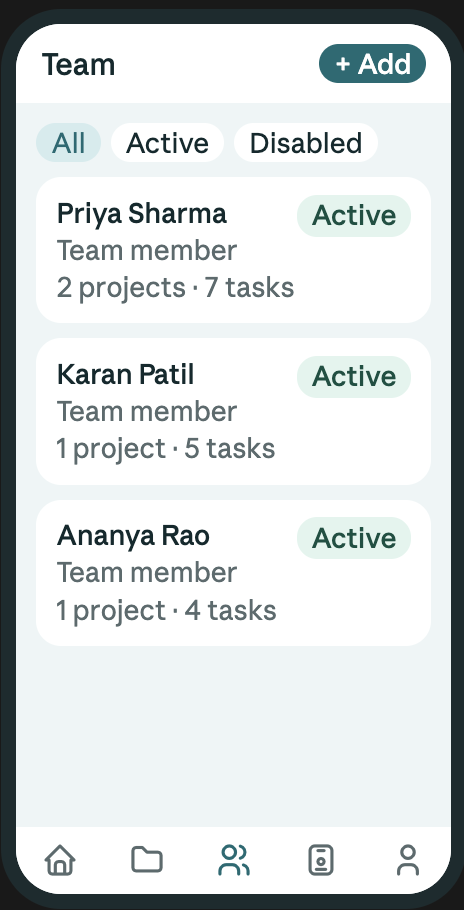
The team roster shows each member's role, status and how many projects and tasks they're handling.
- Add and edit team members
- Project and task count per person
- Active, suspended and disabled status
See how it worksShow less
What’s on this screen
- Active count
- how many team members are active
- Add member button
- add a new person to the team
- Search
- find members by name, email or phone
- Status filters
- All, Active, Suspended and Disabled
- Member card
- name, role, email and status
- Workload
- number of projects and tasks for each person
- View and edit
- open or update any member
How it works
- Tap Add member and enter their name, email and phone.
- Their account is created so they can sign in.
- Assign them to projects and tasks.
- Check their project and task count to see their workload.
- Suspend or disable access when someone leaves.
Example
Before starting a new project, the founder checks the roster and assigns the member with the fewest active tasks.
Who uses it
Why it helps
Work is shared fairly and it's clear who is responsible for what.
Step 6: Bill clients and track payments
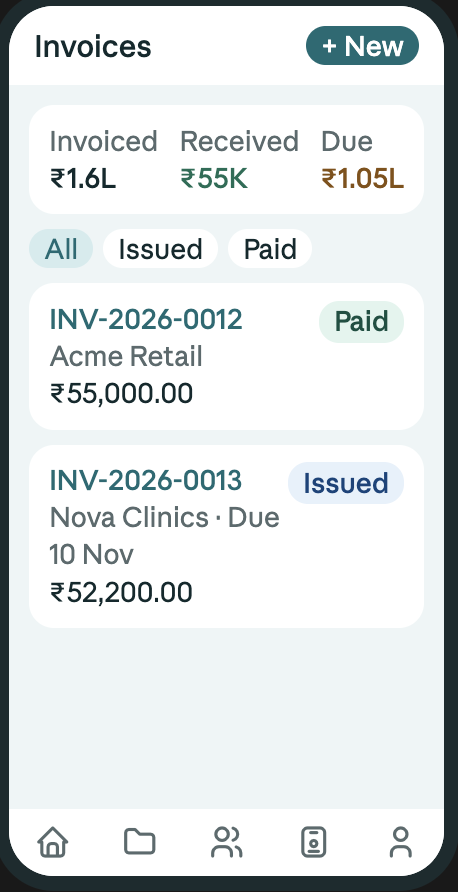
Create invoices, download them, and see at a glance what's been invoiced, received and still outstanding.
- Issued, partial, paid, overdue and draft
- Due dates and balance due
- Download invoices from the app
See how it worksShow less
What’s on this screen
- Summary
- total invoiced, received and outstanding
- New button
- create a new invoice
- Search
- find invoices by number or client name
- Status filters
- Issued, Partial, Paid, Overdue and Draft
- Invoice card
- invoice number, client and status
- Dates
- issue date and due date
- Amounts
- total amount and balance due
- Actions
- view and download
How it works
- Tap New and choose the client.
- Add the amount; the invoice number is created automatically.
- Save it as Draft, or issue it to the client.
- When the client pays part or all of it, the status changes to Partial or Paid.
- Download the invoice anytime to share or keep for records.
Example
An invoice for ₹52,200 is issued on 27 October with a due date of 10 November. Until it's paid, it shows as outstanding at the top.
Who uses it
Why it helps
You always know who has paid and what's still pending, so no payment is missed.
02 — Common questions
How Varuag OS works for you.
Who can use Varuag OS?
Can I sign up myself?
How do I get the app?
I forgot my password. What should I do?
Is my data safe?
Can I use it on my phone?

Work with us
Want to work with us?
Join a project as a client, team member or intern, and you’ll get your own Varuag OS login.